View Missing Files
Choose View → Missing Files to open the Missing Files dialog.
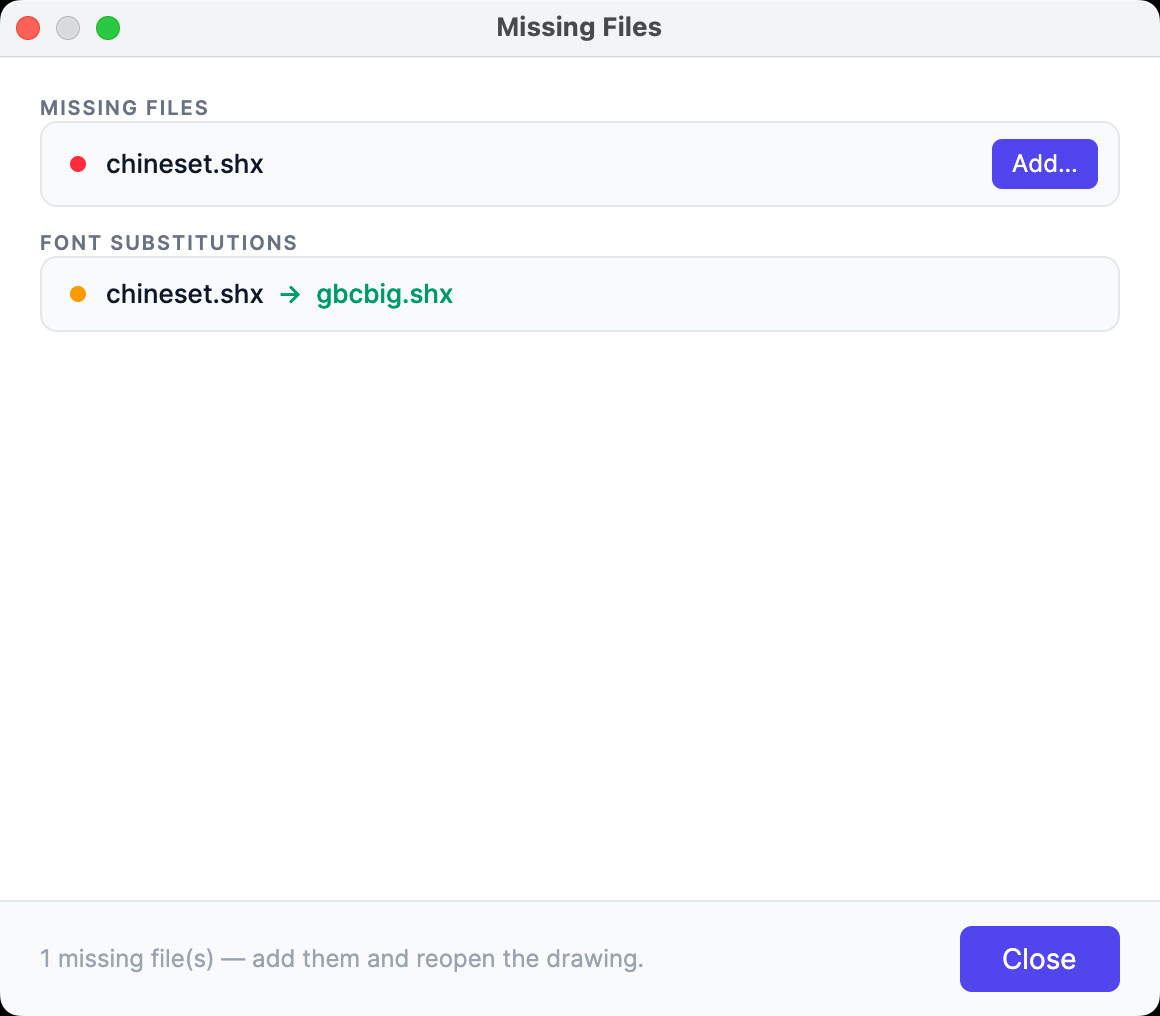
If SHX fonts or referenced images are missing, the exported PDF may show "??" or missing graphics. The Missing Files dialog lists these files so you can replace them and restore correct display.
Configure Resource Paths
Set search paths for fonts, external references (XREF), and raster images.
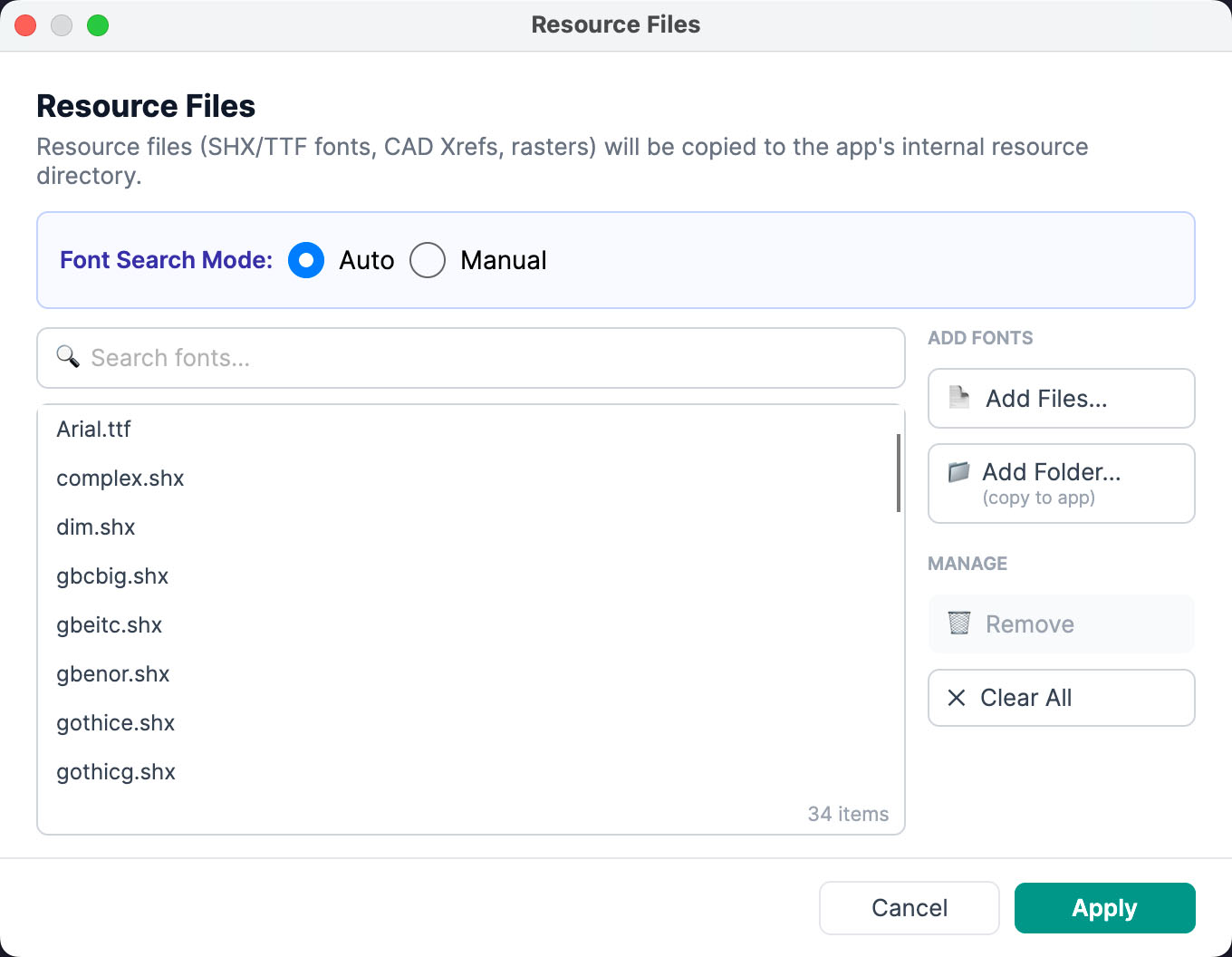
You can let the app find fonts automatically or configure SHX/TTF paths manually. Automatic lookup is easier, but manual configuration usually produces better results.
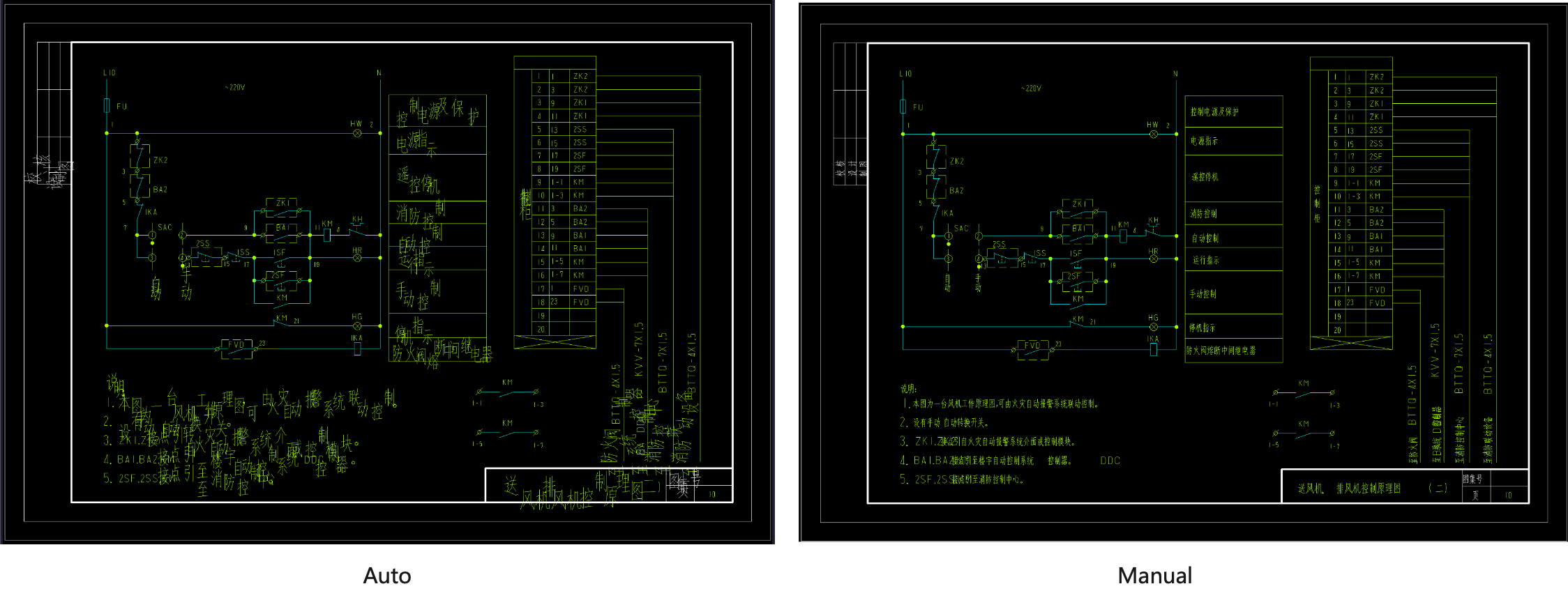
The comparison below shows the same drawing with automatic lookup (left) and manual configuration (right). Manual setup delivers finer text rendering; automatic lookup avoids garbled text but layout may be less precise.
Add Resource Files
Add Files copies required SHX fonts, images, and referenced DWG files into the app sandbox. Because of the macOS sandbox, the app cannot read files outside its container unless they are copied in.
Font Mapping
Click the button  on the toolbar to open font mapping settings.
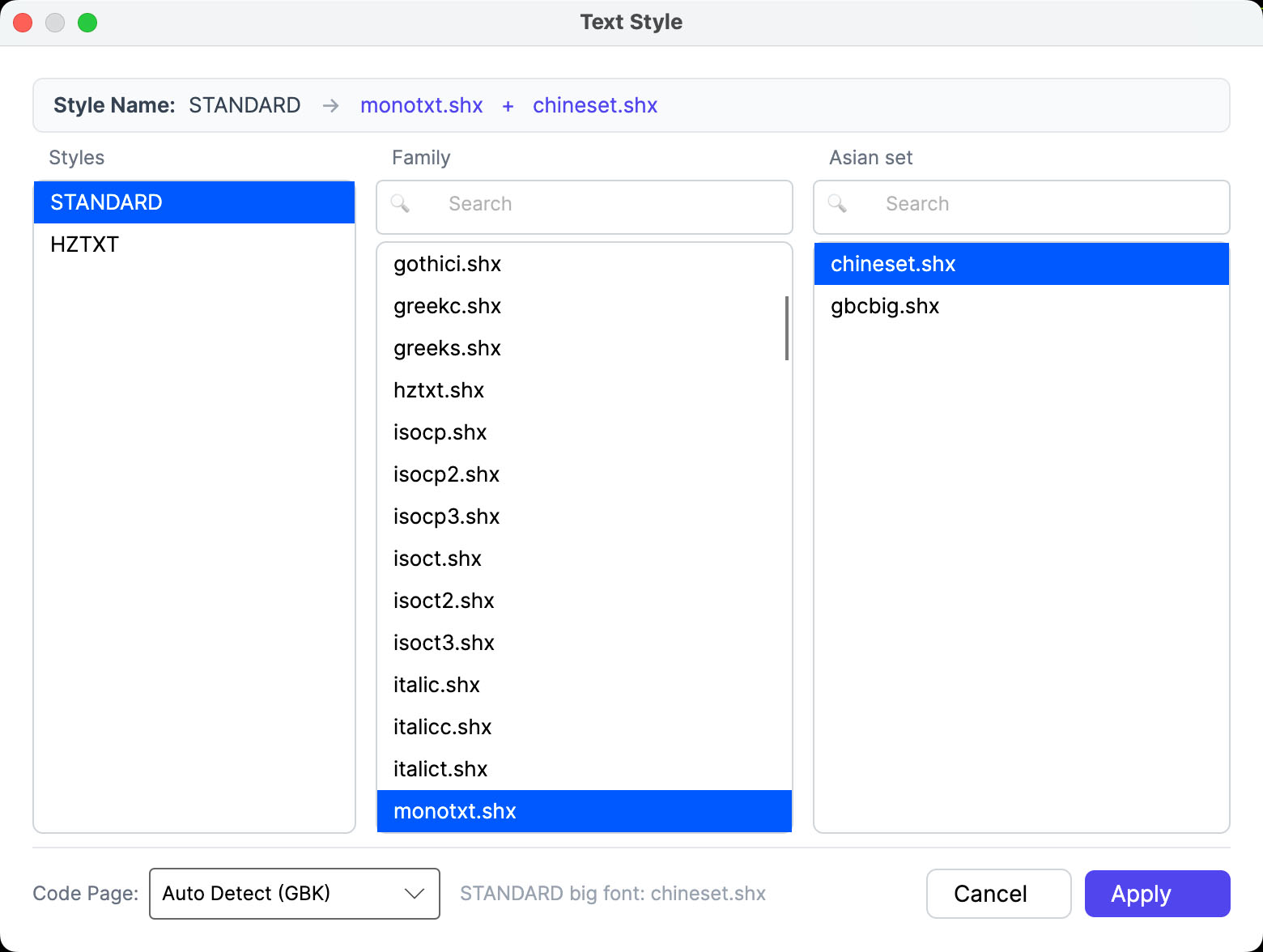
Configure mapping rules for SHX fonts and Asian big fonts (e.g., Chinese, Japanese, Korean). Click Apply to refresh the drawing. Correct mapping resolves garbled Asian text.
Code Page
Different languages use different code pages. The app detects the code page automatically—for example, GBK for Chinese and Shift JIS for Japanese. You can also switch manually. If no code page is detected, Latin/ASCII is used by default.
Copyright (c) 2026 CAD Pro Tool Software. All Rights Reserved.