Step 1 — Open a Drawing:
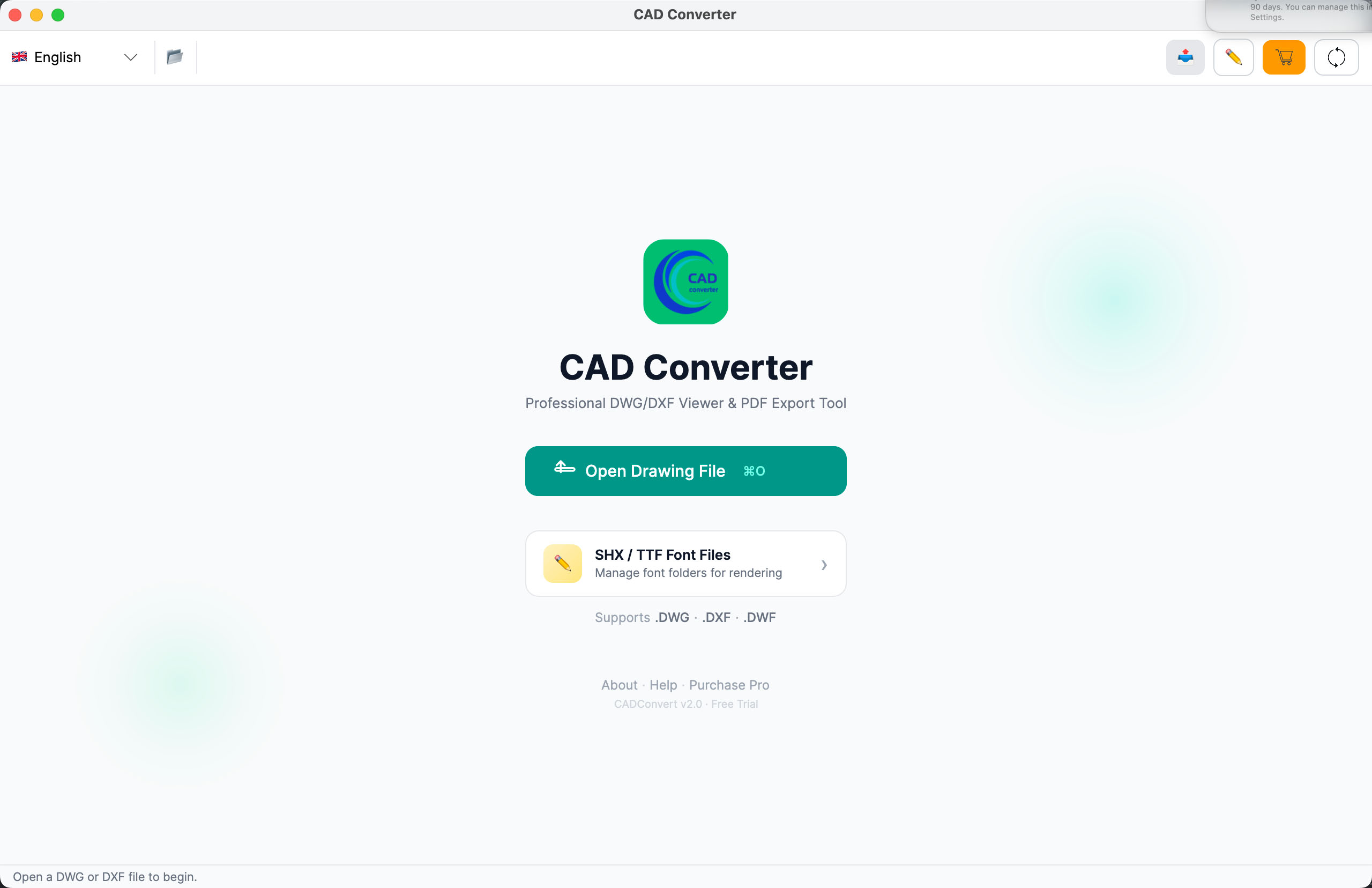
Click the Open Drawing File button to open the drawing you want to convert.
Step 2 — Layer Panel
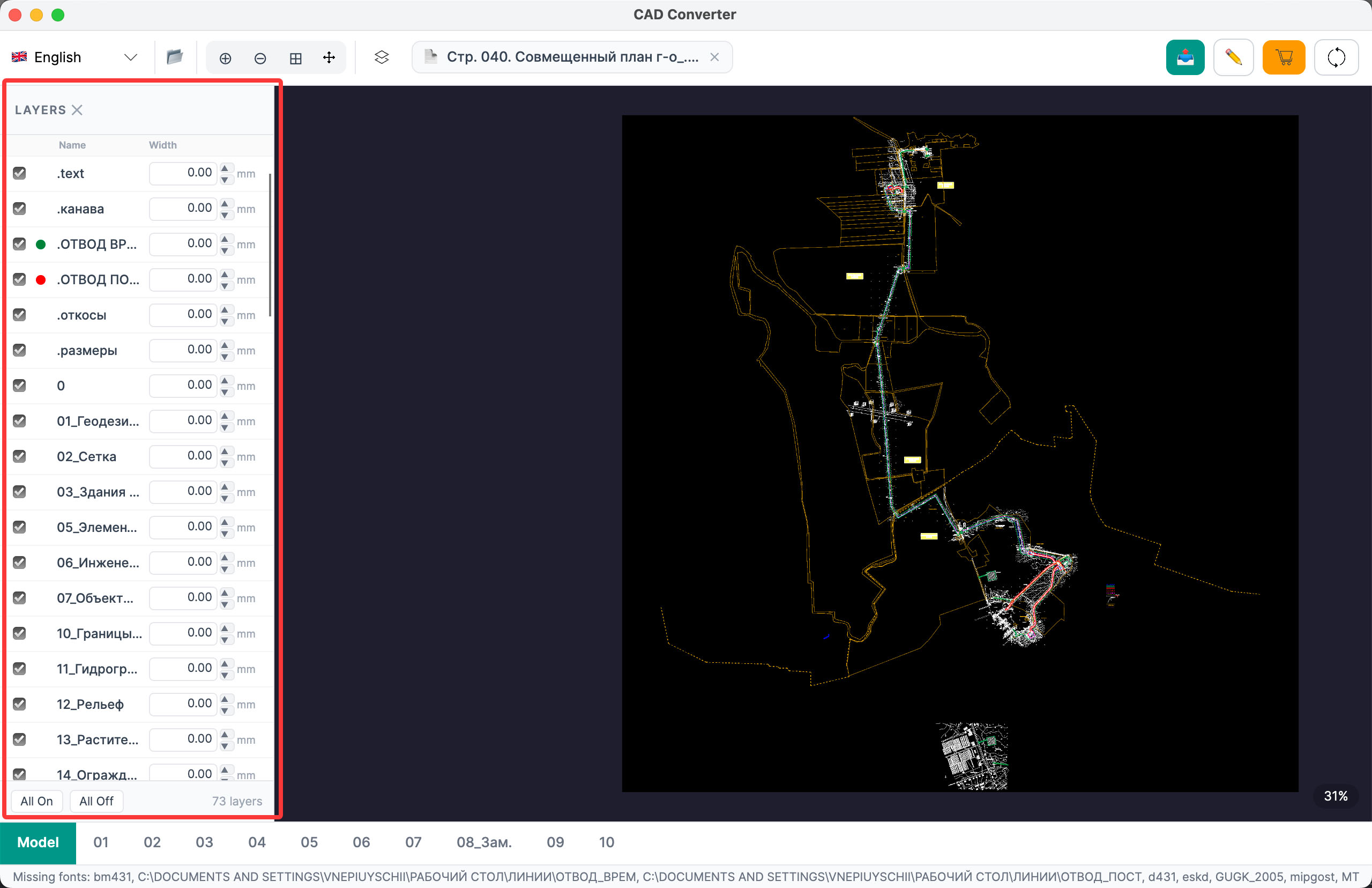
Open the Layer Panel
Click the layer button
on the toolbar to show the layer panel on the left.
Show and Hide Layers
Check or uncheck layers in the panel to control which layers are visible.
Line Weight
Enter a value in the field next to the layer name to set line weight. Both inches and millimeters are supported.
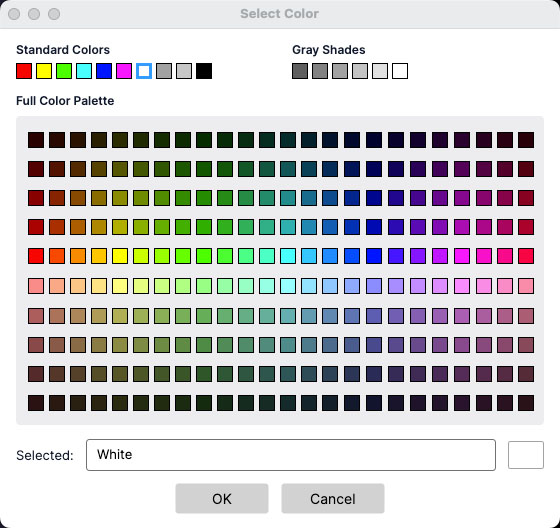
Change Layer Color
Click the color dot to the left of a layer name to open the color picker and choose a new color.
Step 3 — Export Settings
Step 4 — Export to PDF
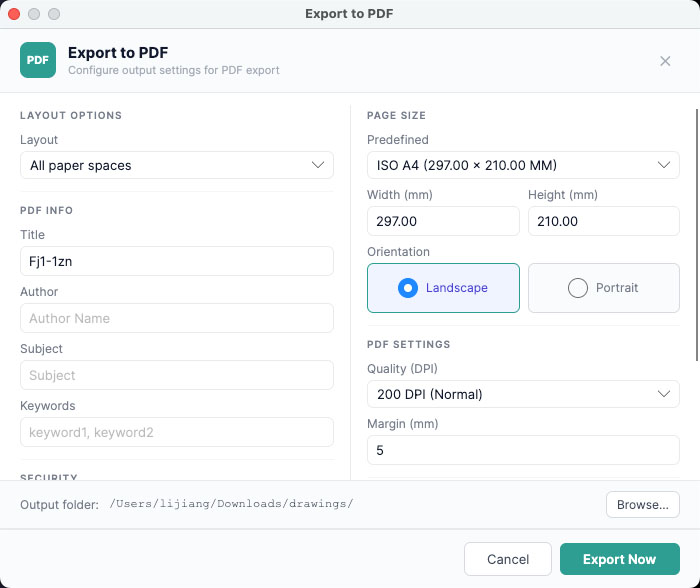
Open the Export Dialog
Click the export button
on the toolbar to open the export dialog.
Layout
Choose which layouts to export: current layout, model space only, all layouts, all paper-space layouts, or a custom selection. In most cases, choose All Layouts.
Page Size
The app provides 32 preset paper sizes. Select one from Predefined, or choose Custom to set your own dimensions and orientation (Landscape / Portrait).
Page Margin
Set the blank margin around the page. The unit matches the drawing unit and does not change when the scale changes.
PDF Info
Add PDF metadata such as title, author, subject, and keywords.
Watermark
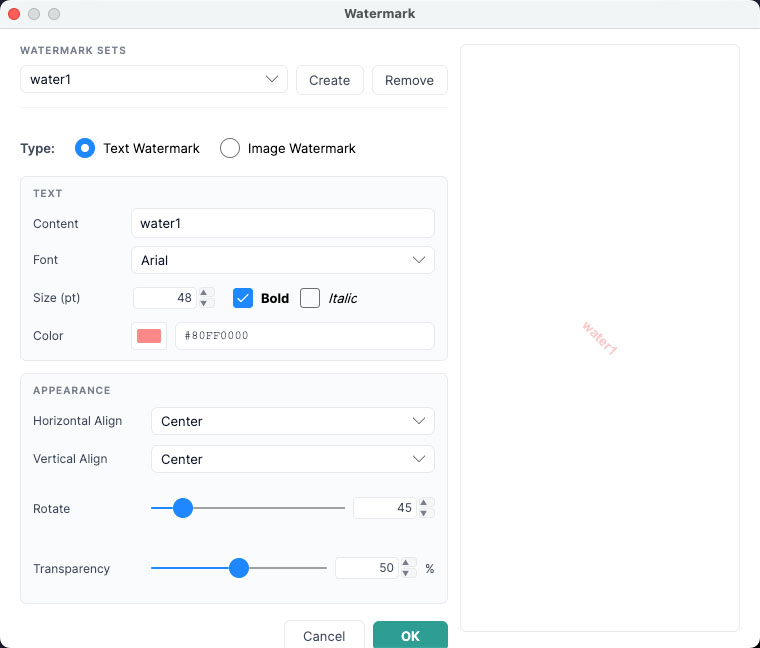
Click Manage to open the watermark dialog.
Add text or image watermarks and adjust font, color, angle, and opacity. The watermark is applied when you export the PDF.
Security
Set a PDF password and control whether copying, editing, and printing are allowed.
Click Export Now to generate the PDF. The file opens automatically when export completes.
Conversion issues can occur—for example, missing SHX fonts may cause text to appear as "?", or images outside the app sandbox may not display because of macOS sandbox restrictions.
After configuring the required resources, run the export again to get correct results.
Copyright (c) 2026 CAD Pro Tool Software. All Rights Reserved.